Collections
Organize your entire Sorcery: Contested Realm card library with unlimited collections, powerful search, and detailed statistics.
Collections Home
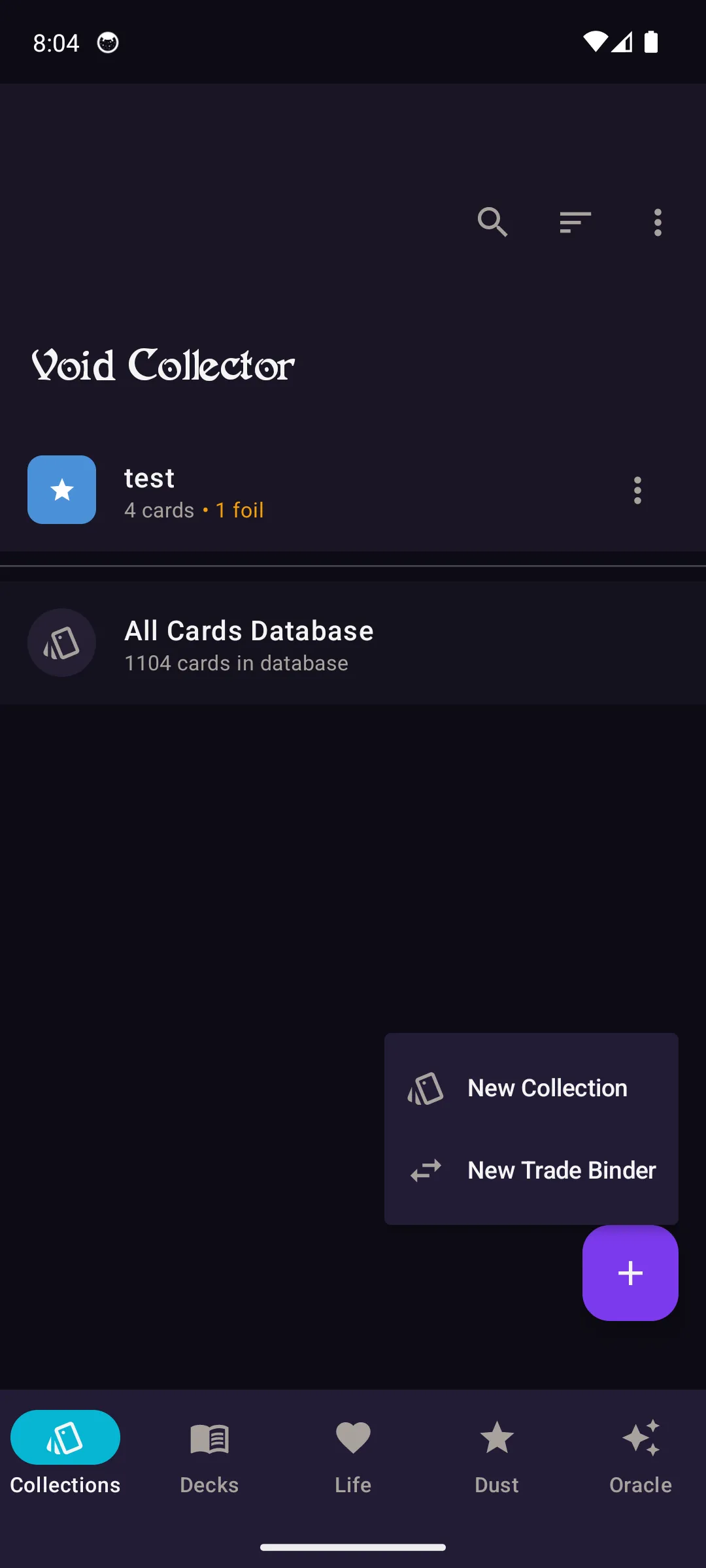
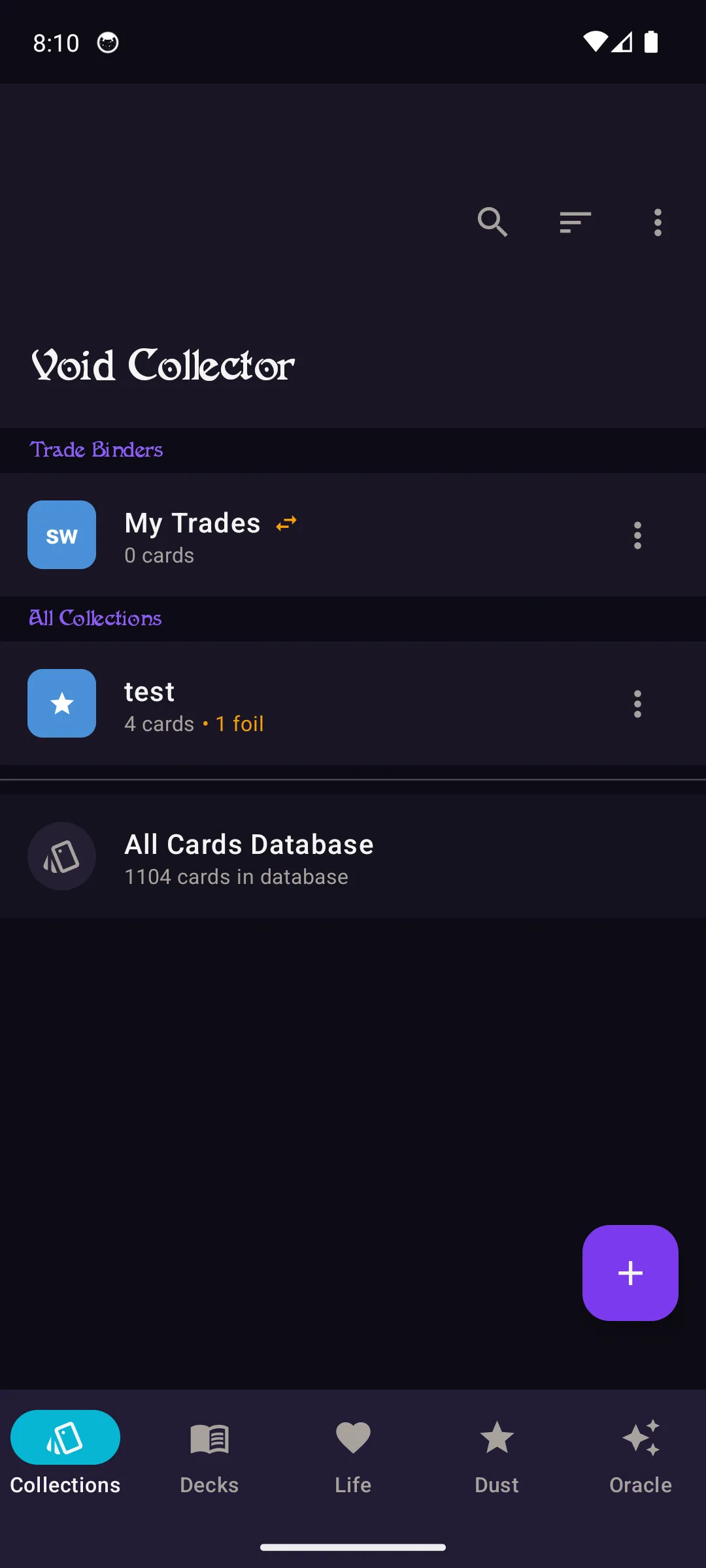
The Collections tab is your home base. You'll see all your collections, trade binders, and the All Cards Database with 1,100+ cards. Each collection shows its card count and foil count at a glance.
Create a Collection
Tap the purple + button in the bottom-right corner to create a new collection or trade binder. Give it a name and start adding cards right away.
Browse Your Cards
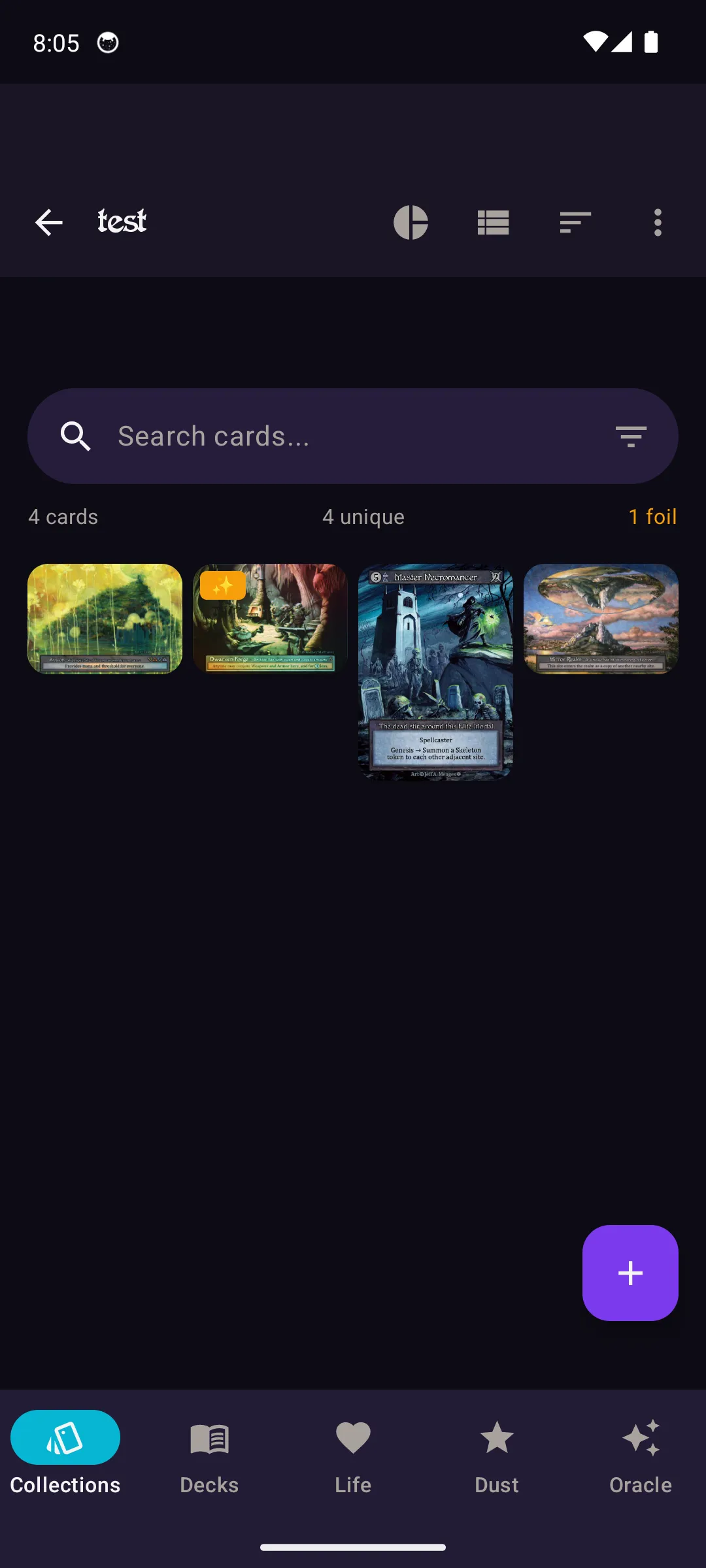
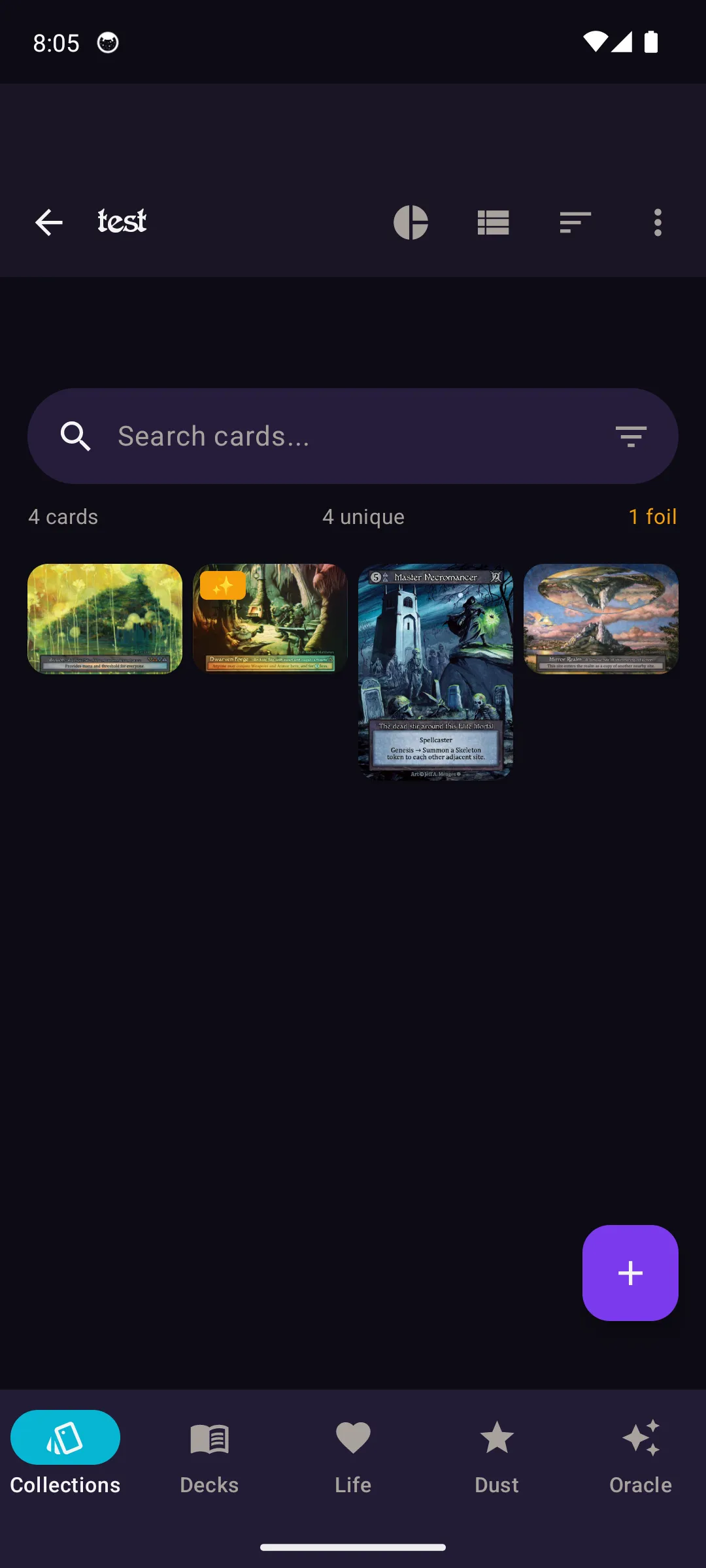
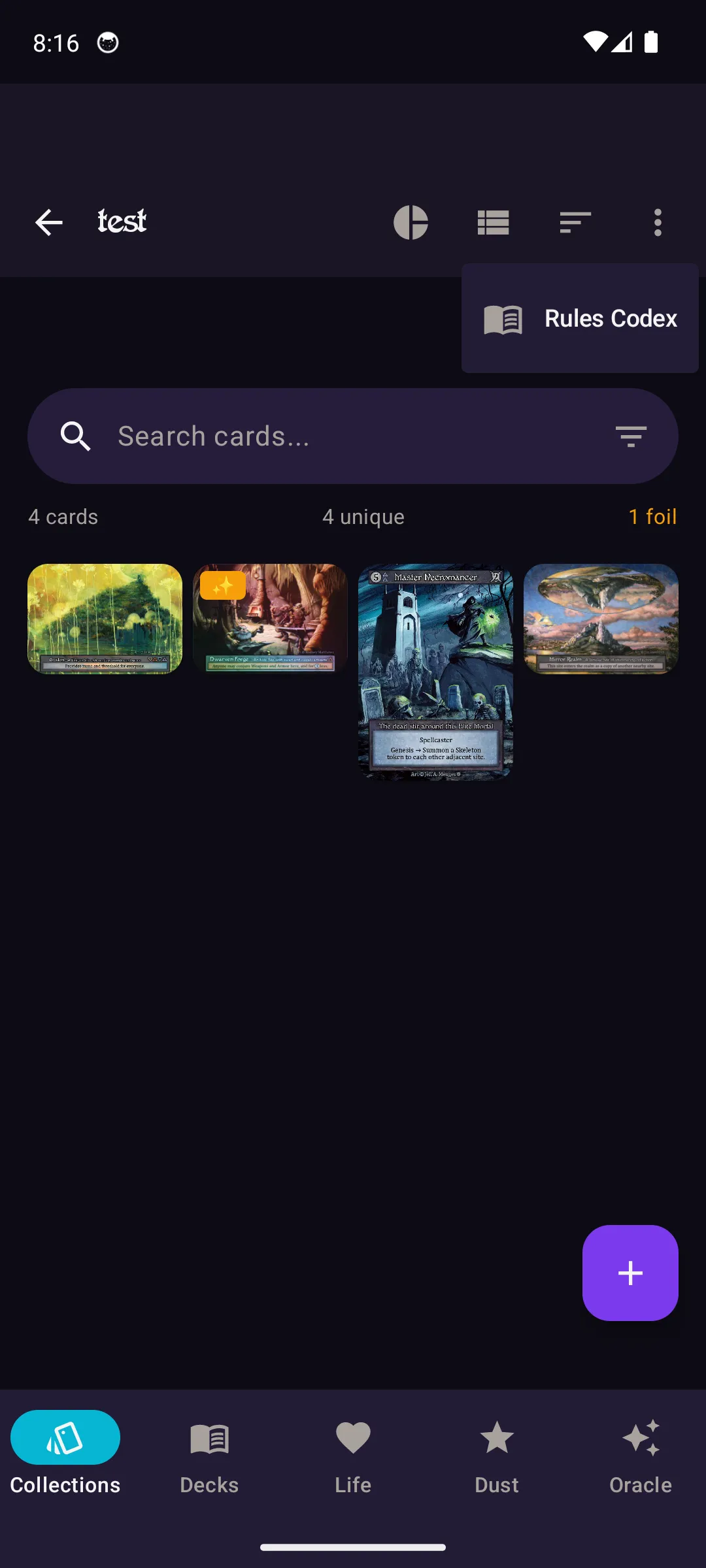
Open a collection to see your cards in a grid view with card art thumbnails. Use the search bar to find specific cards or the filter icon to narrow by element, rarity, type, and more.
List View
Prefer a compact layout? Tap the toggle view button in the toolbar to switch between grid and list views. List view shows card names, types, and quantities in a scannable format.
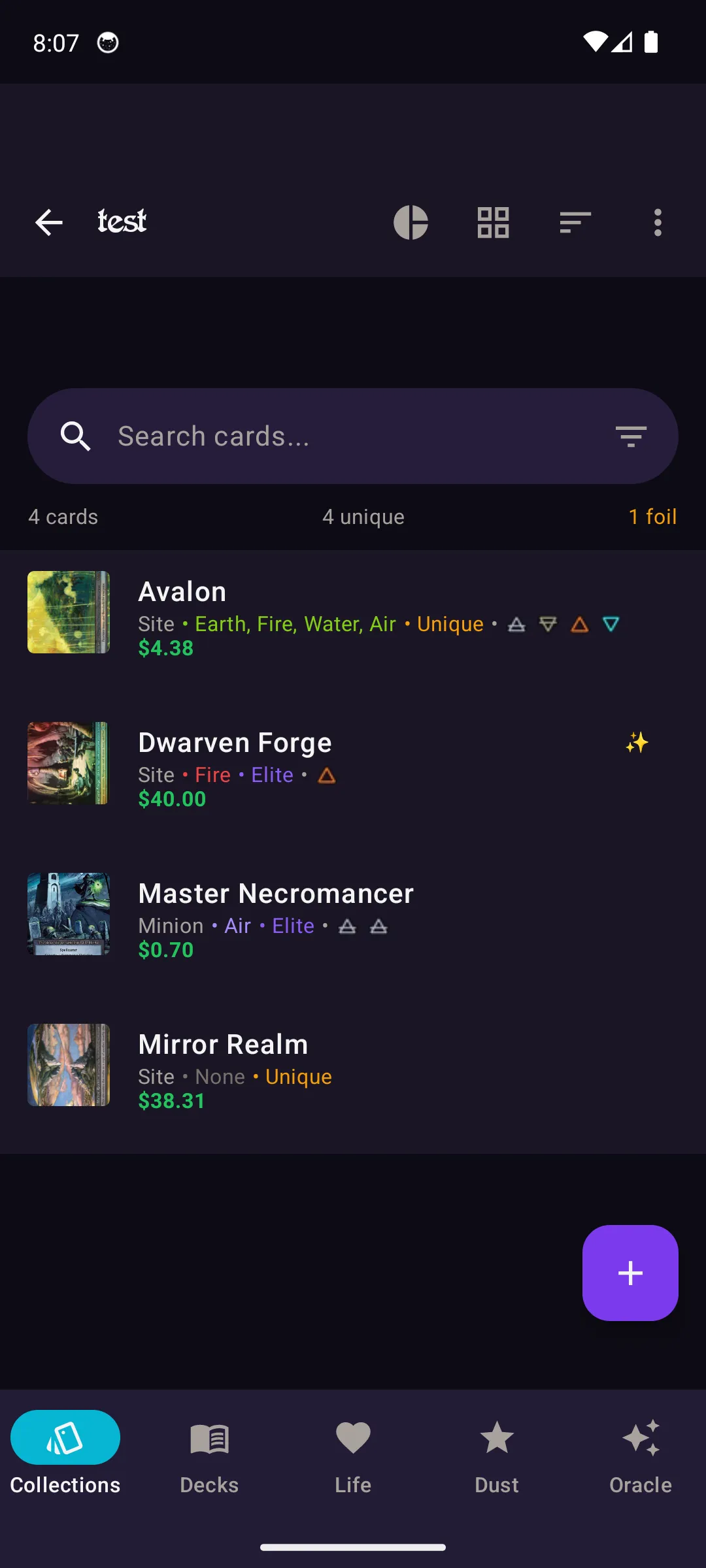
Add Cards
Tap the + button to add cards. Choose Search & Add to browse the full database by name, or use the camera scanner to identify cards instantly.
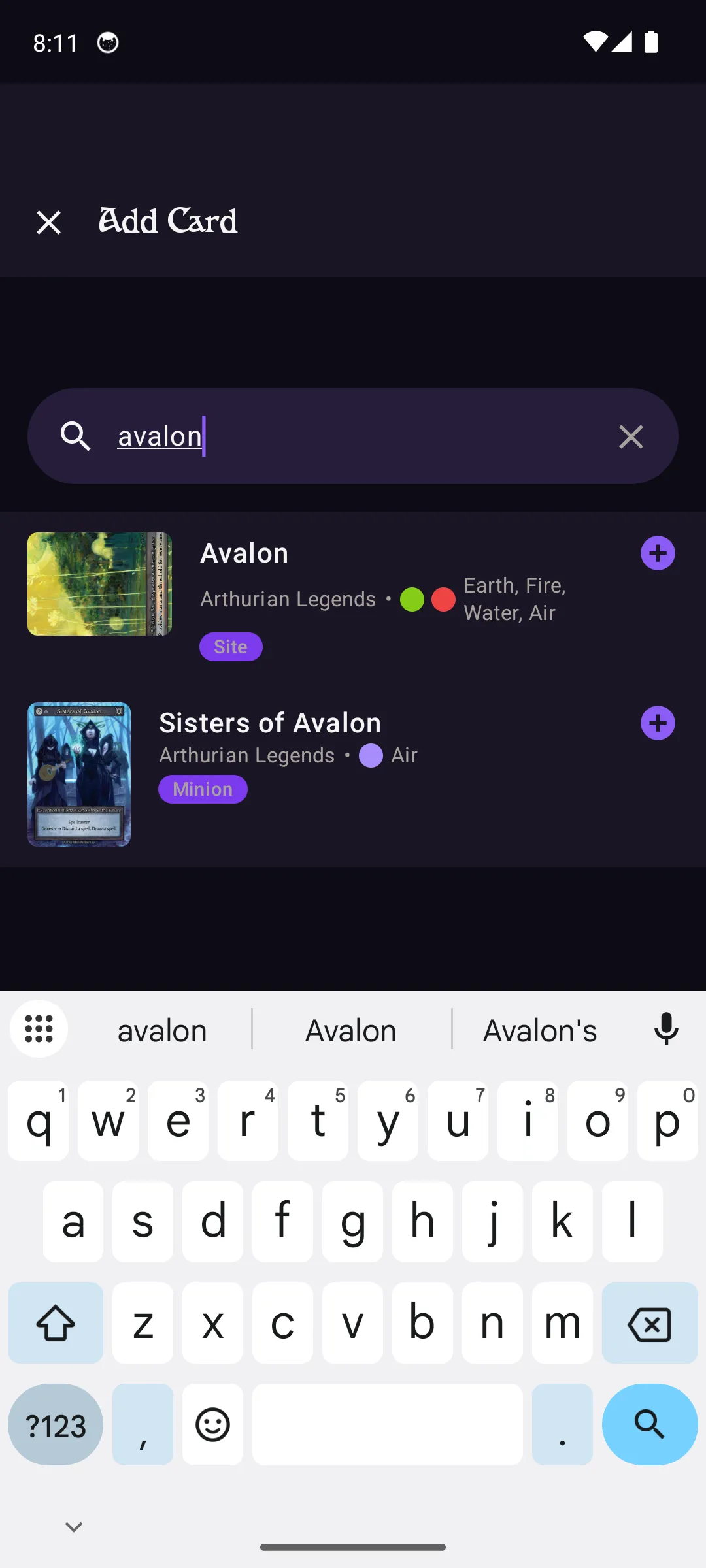
Card Details
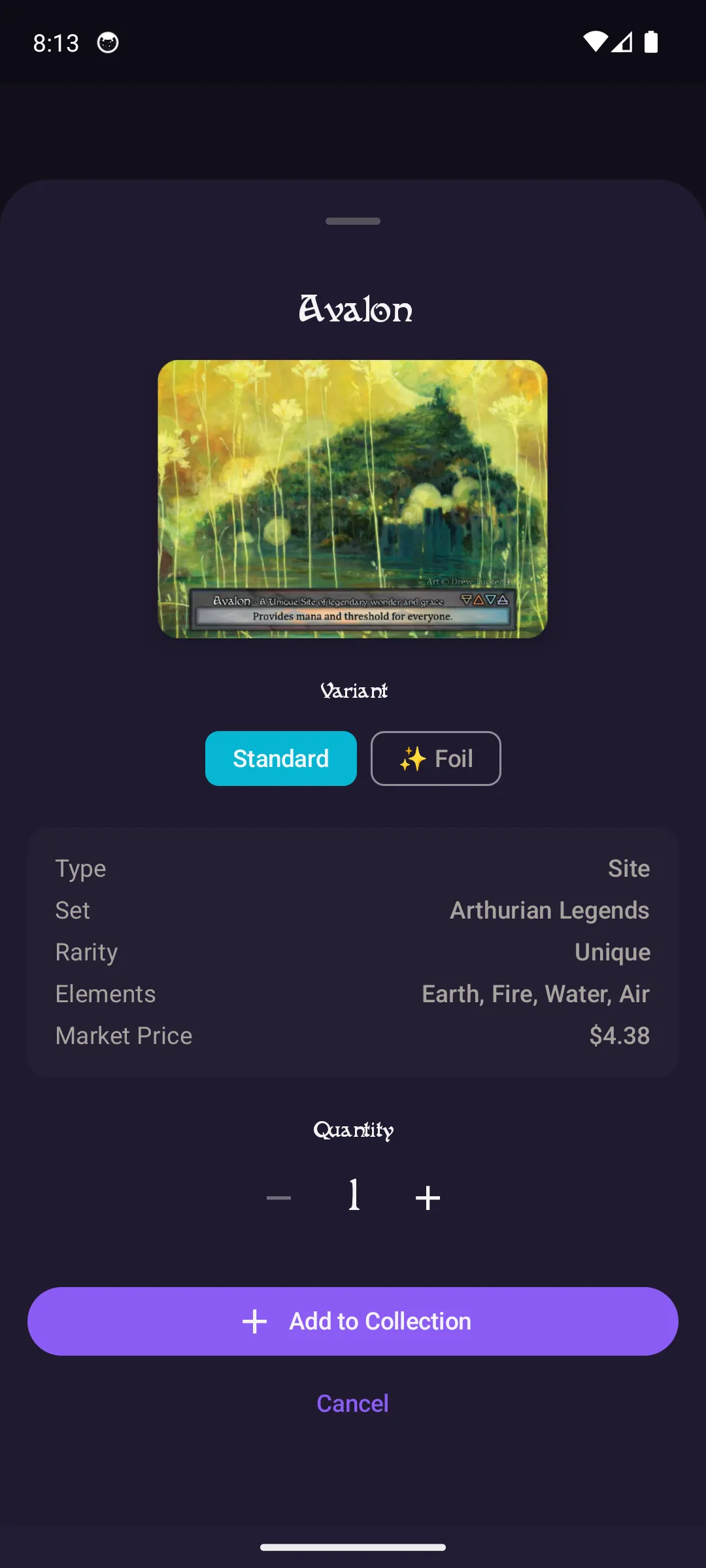
Tap any card to see its full details: card art, type, set, rarity, elements, and current TCGPlayer market price. Scroll down to adjust quantities and foil counts.
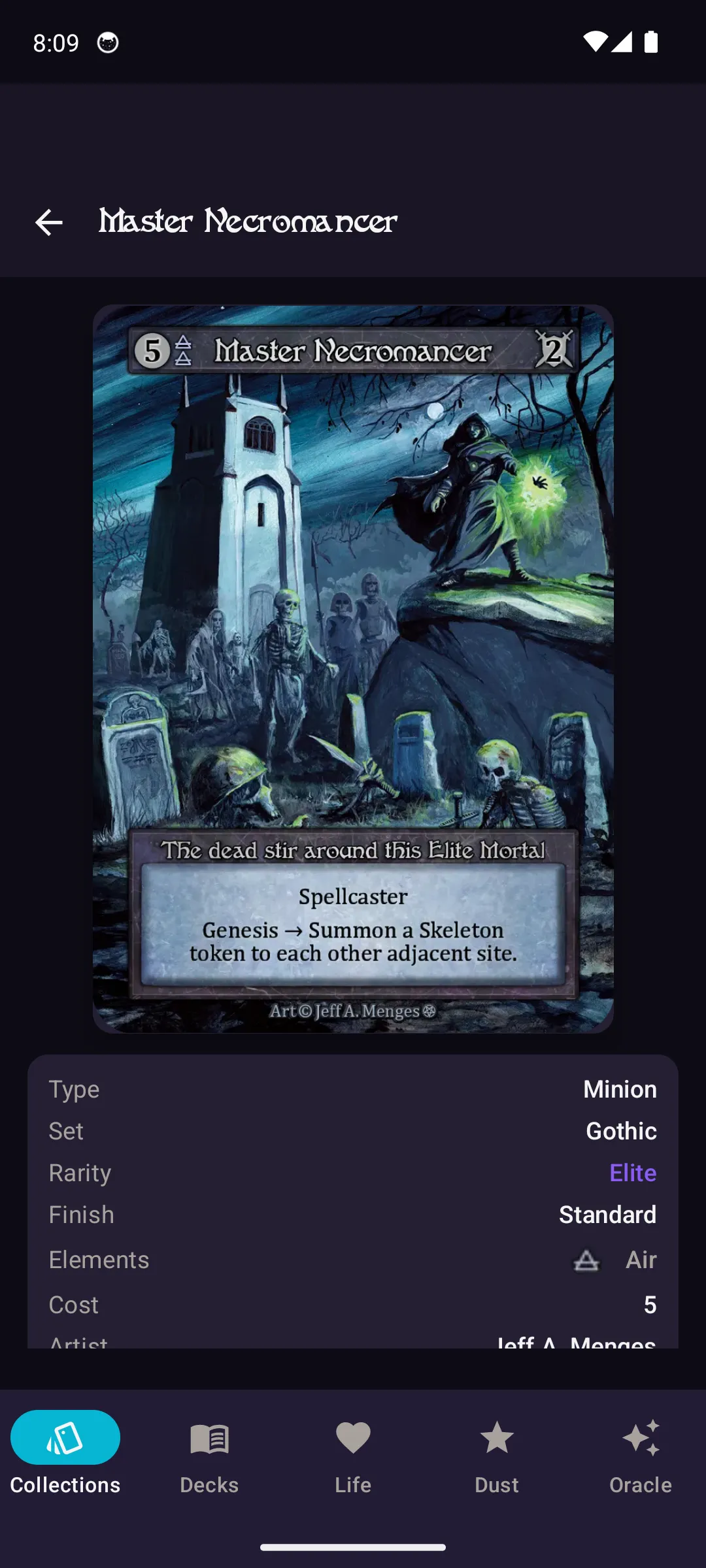
Collection Statistics
Tap the pie chart icon in the toolbar to see your collection stats: mana curve distribution, rarity breakdown, element spread, and total estimated value.
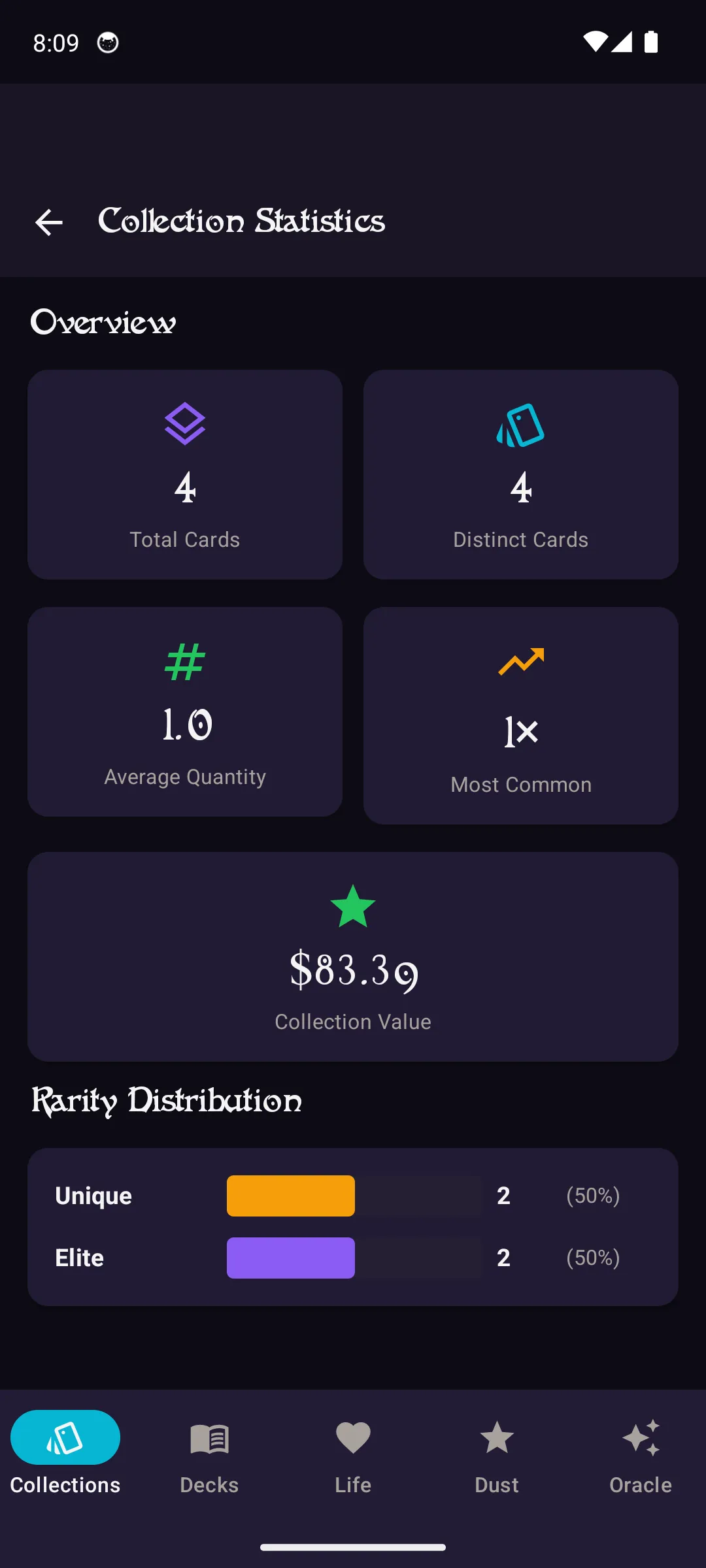
Import, Export & Backup
Tap the three-dot menu in the toolbar for advanced options: import from CSV or Curiosa, browse the Rules Codex, and backup or restore your entire collection.
Trade Binders
Build a trade binder of cards you have for trade, set asking prices, and share with other players.
Create a Trade Binder
From the Collections home, tap the + button and select New Trade Binder. Trade binders appear in their own section at the top of your collections list, marked with a special icon.
Your Trade Binder
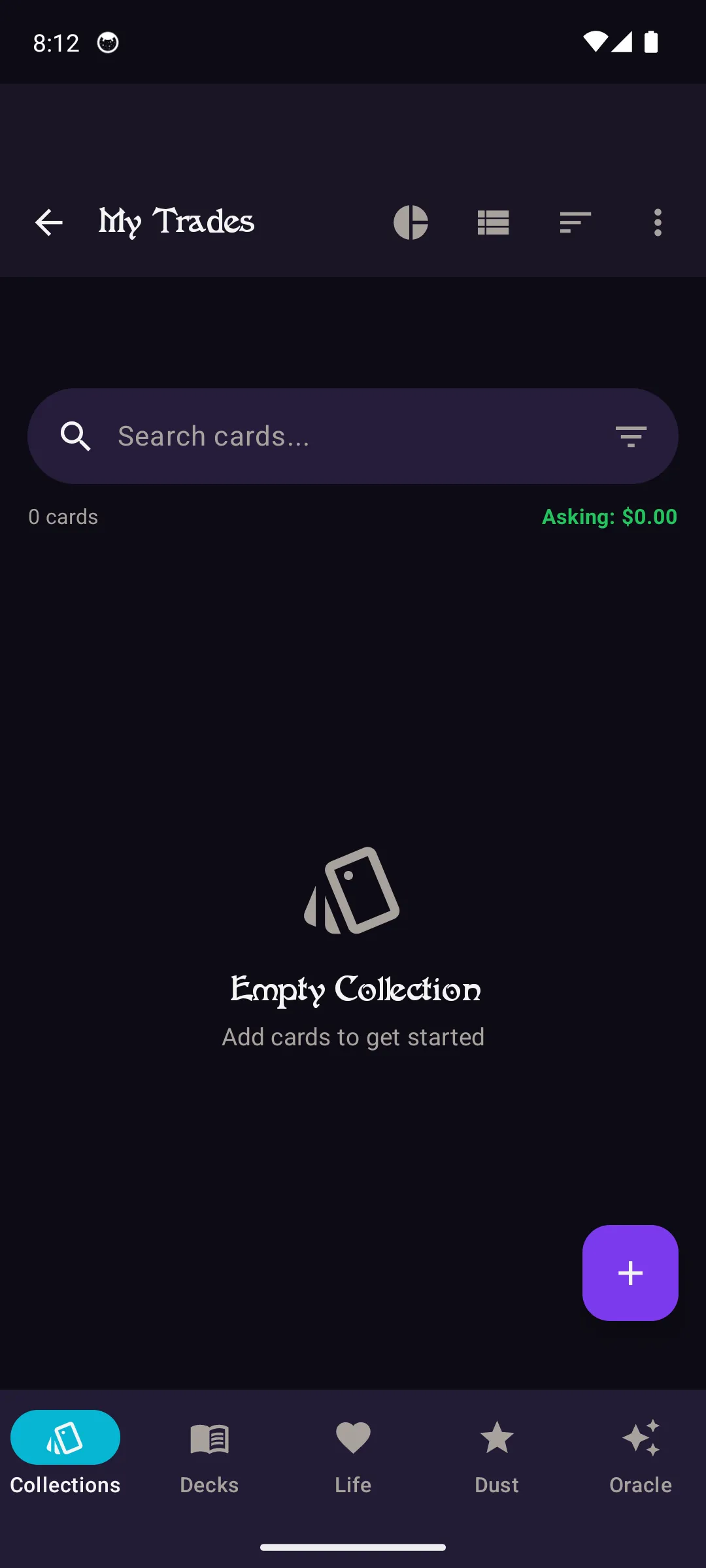
Inside a trade binder, you'll see your total asking price at the top. Add cards by tapping the + button, just like a regular collection. Search, filter, and toggle between grid and list views.
Set Asking Prices
Tap any card in your trade binder to open its detail view. Set a custom asking price and specify what cards you're looking for in return. Market prices from TCGPlayer are shown for reference.
Search for Trades
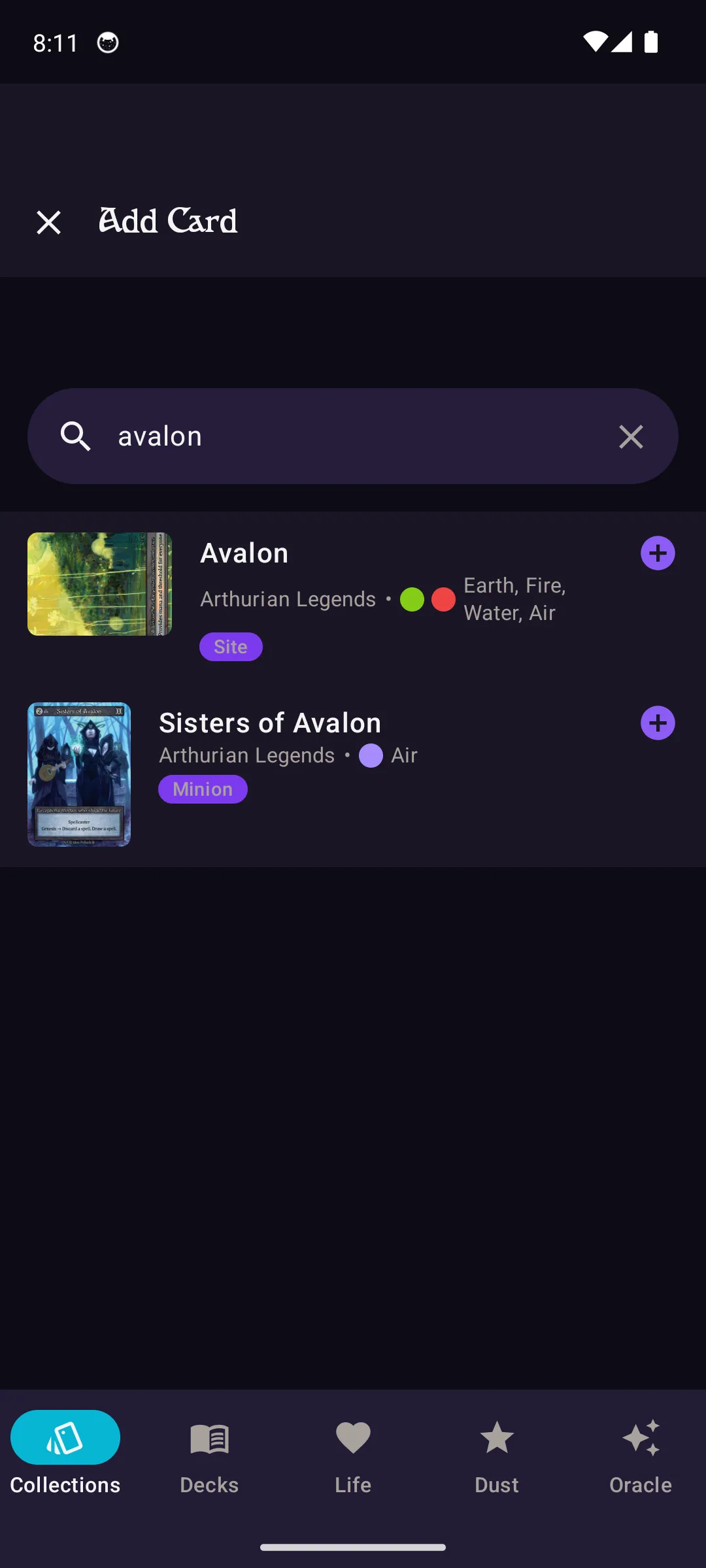
Use the search bar to quickly find specific cards in the full database. Results show card art, set name, element, type, and rarity. Tap Add to include a card in your trade binder.
Share Your Binder
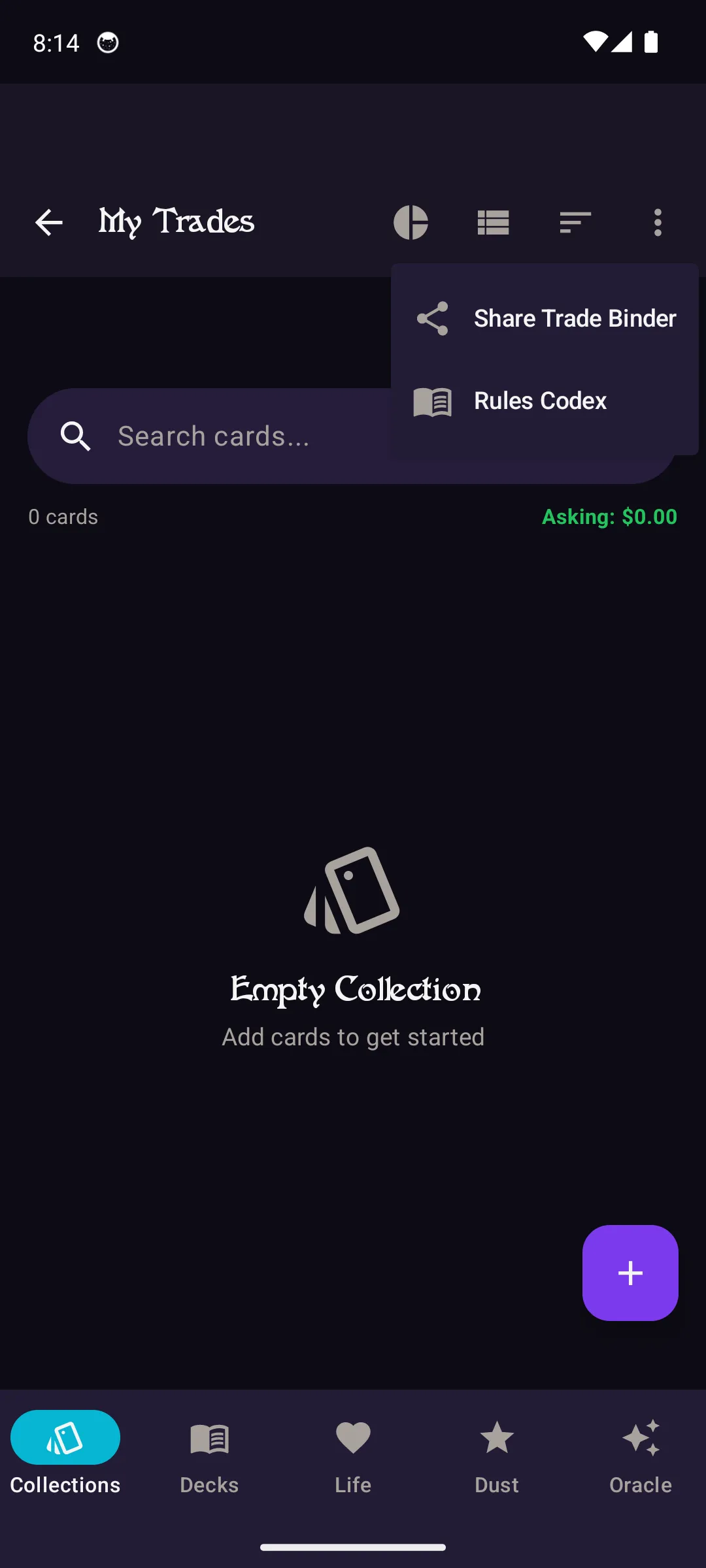
Tap the three-dot menu and select Share to send your trade binder to other players via any messaging app. Other Void Collector users can view your binder directly in the app.
Life Tracker
Track life totals, mana thresholds, and game events during your Sorcery matches with a clean, intuitive interface.
Single Player Mode
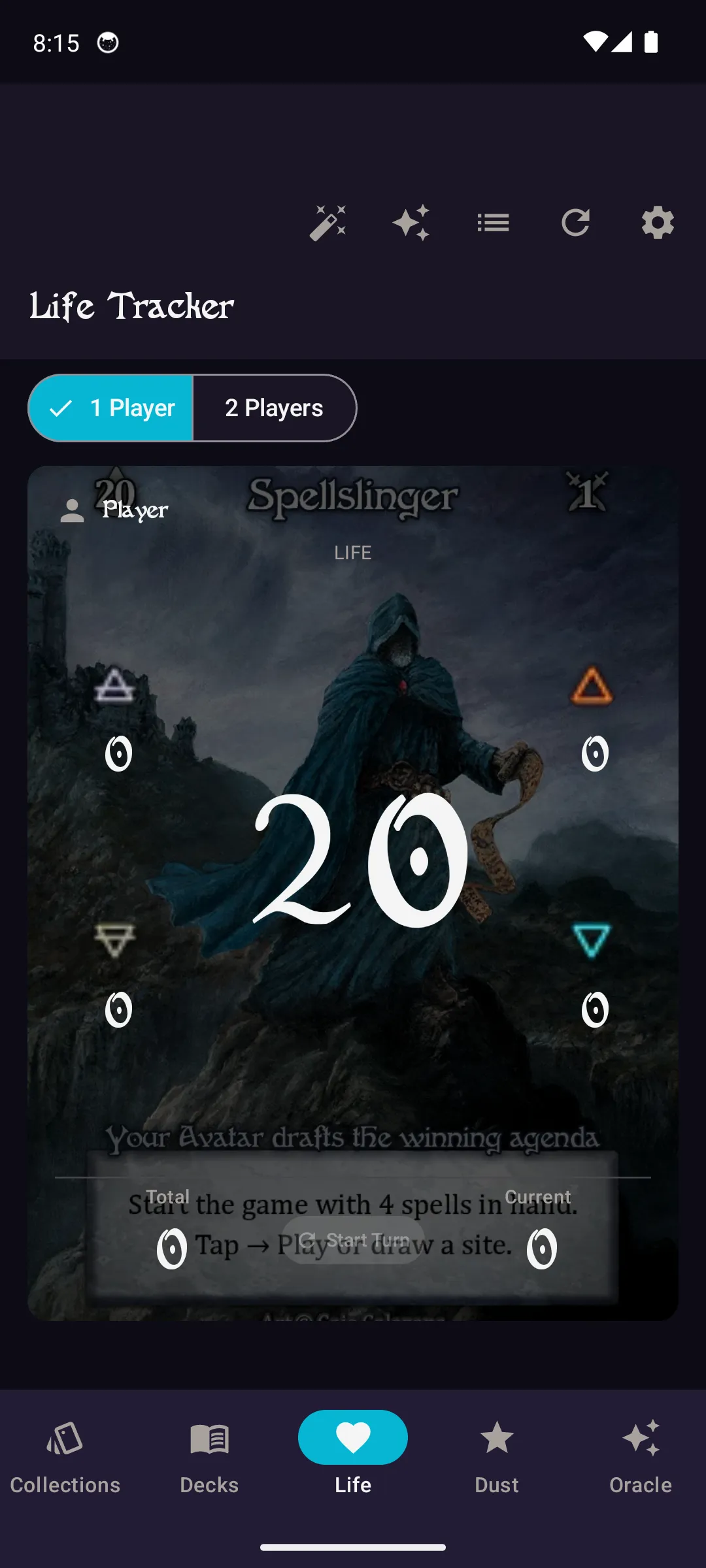
The Life Tracker opens in 1 Player mode showing your life total, mana thresholds for all four elements (Air, Earth, Fire, Water), and turn tracking. Tap the life total to adjust it up or down.
Two Player Mode
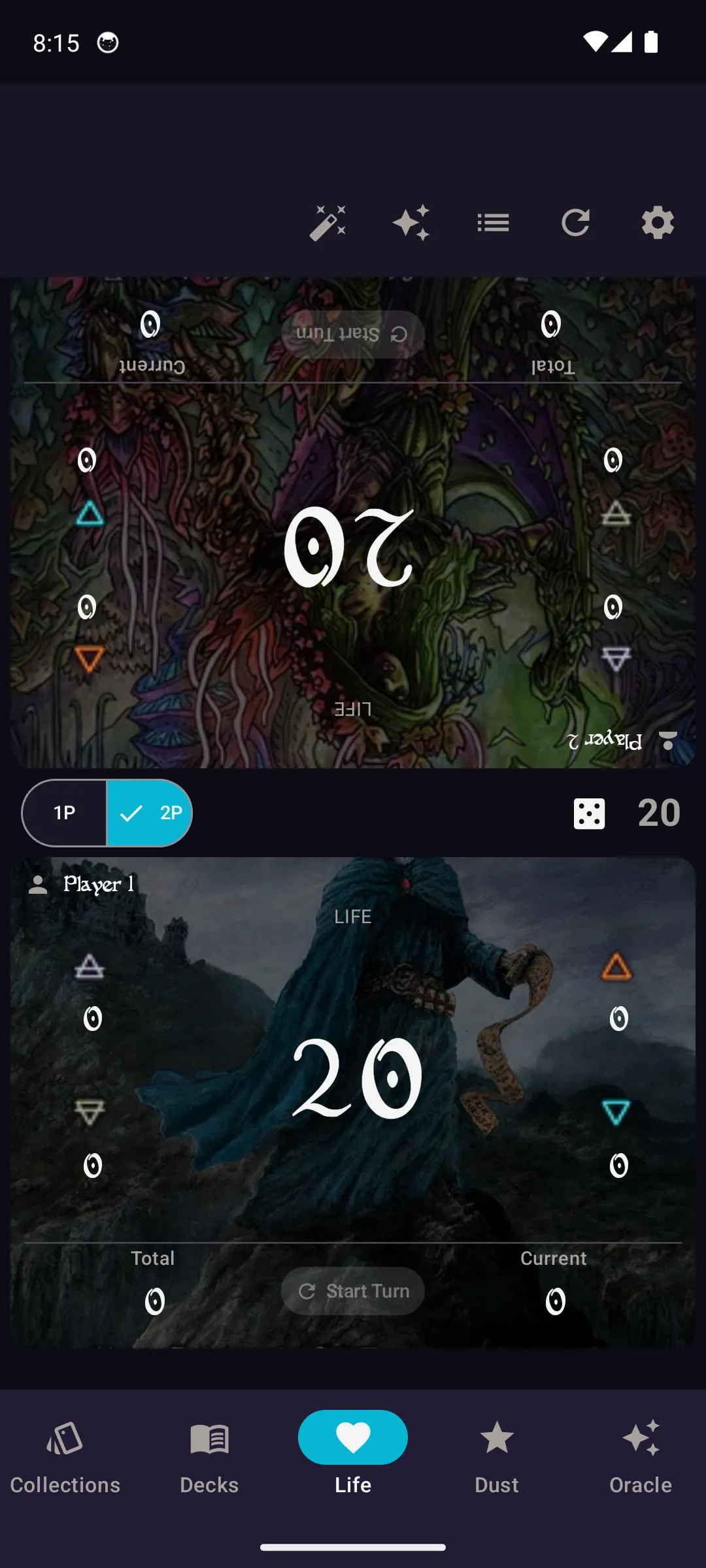
Tap 2 Players to switch to the face-to-face layout. Each player gets their own life counter and threshold tracker, oriented for easy viewing across the table.
Settings
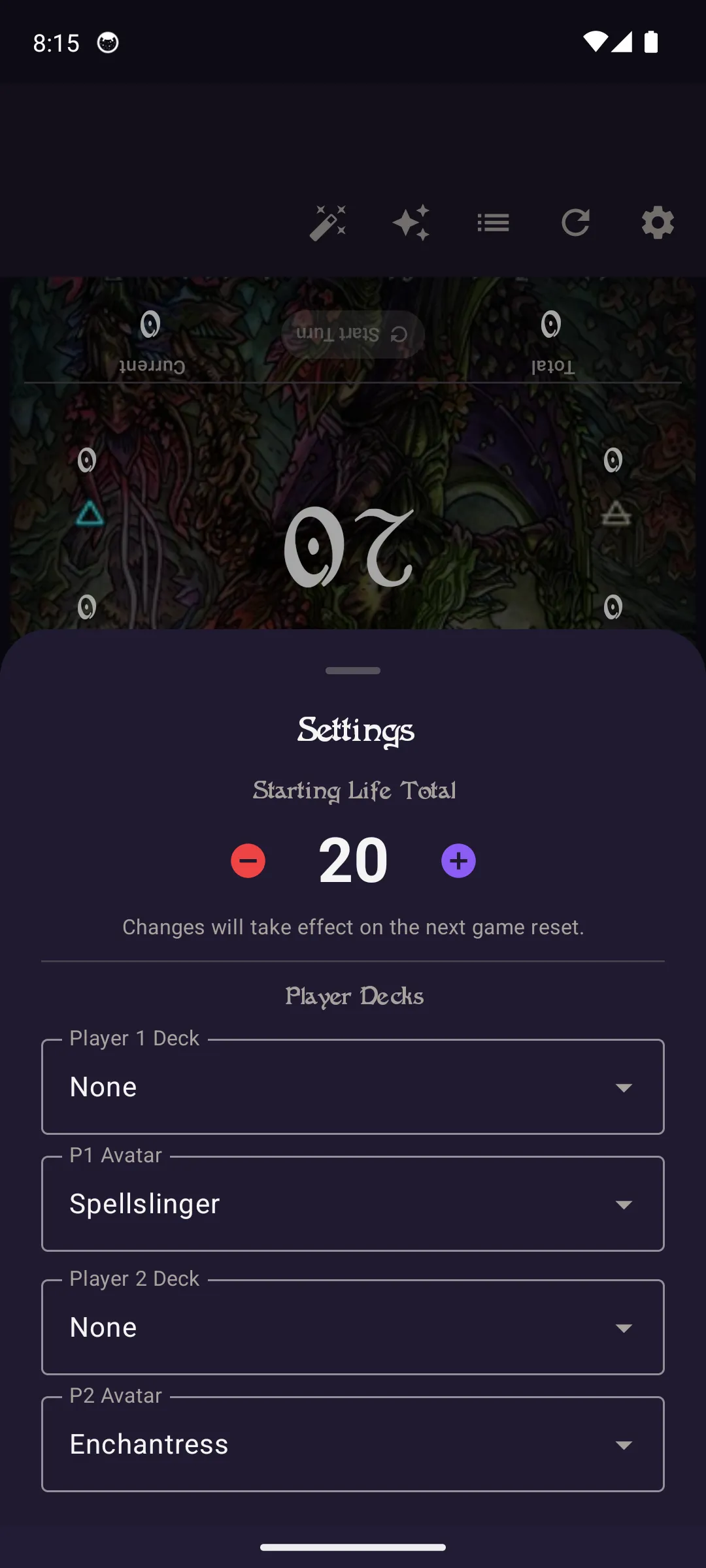
Tap the gear icon to customize your game setup: set starting life totals, choose your deck, select an avatar, and configure other preferences.
Mana Thresholds
Track your mana thresholds for each element by tapping the element icons around the life counter. Thresholds update in real time and are preserved even when switching tabs.
Game Log
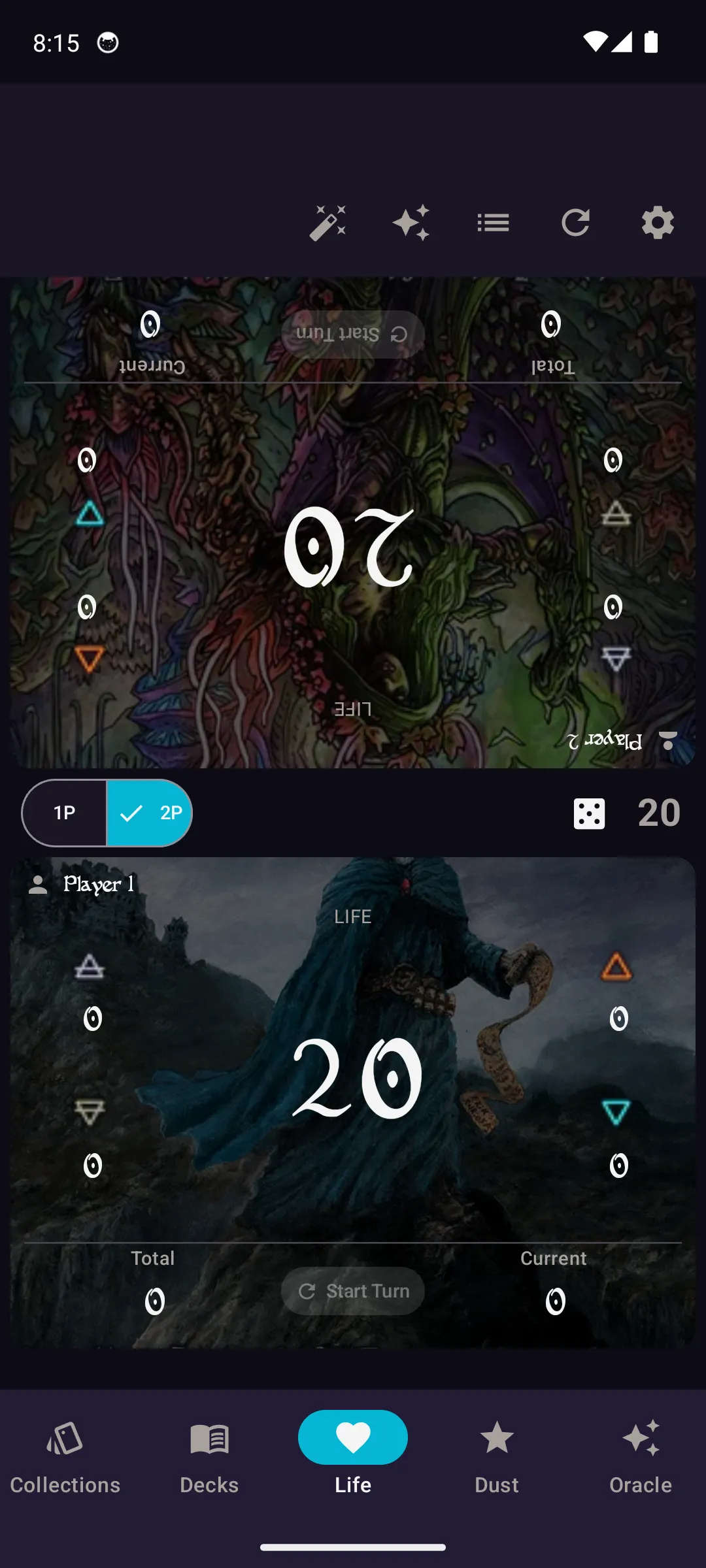
Tap the history icon to view the full game log. Every life change and threshold adjustment is recorded with timestamps, so you can review what happened during the match.
Chaoswish Random Card
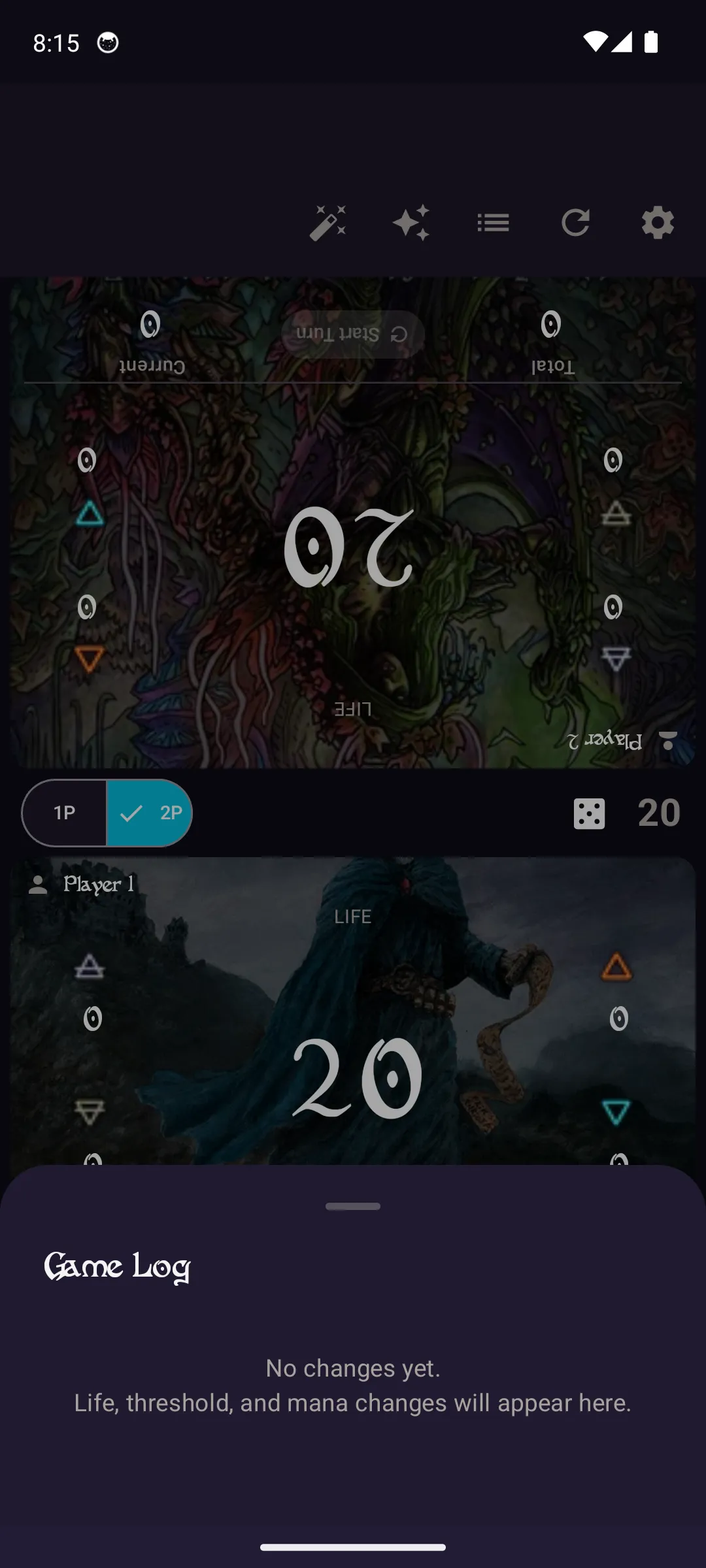
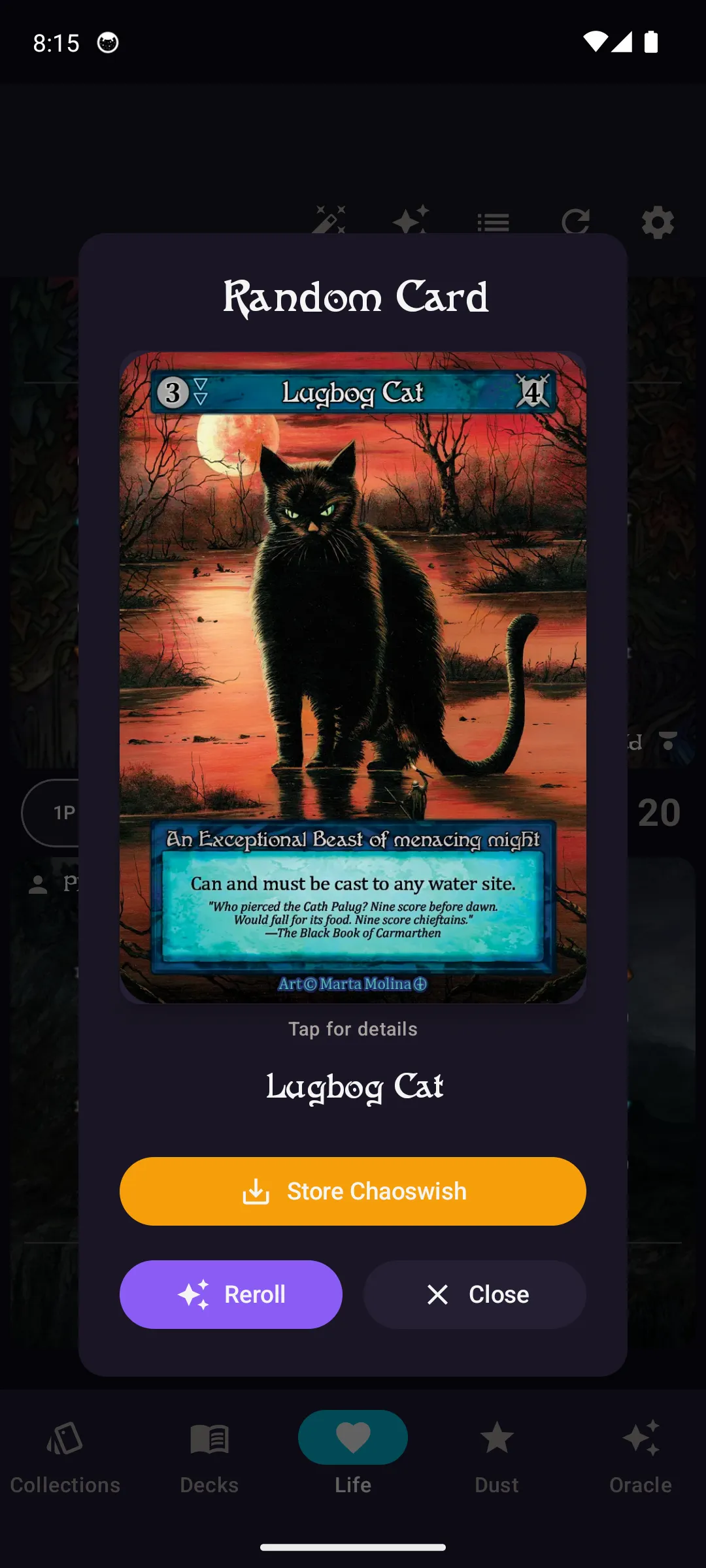
Need a random card for Chaoswish? Tap the sparkle icon to generate a random card from the entire database. The card is displayed with full art and can be recalled later during the game.
Dust Rewards
Browse available promotional rewards from the Sorcery dust redemption program.
Available Rewards
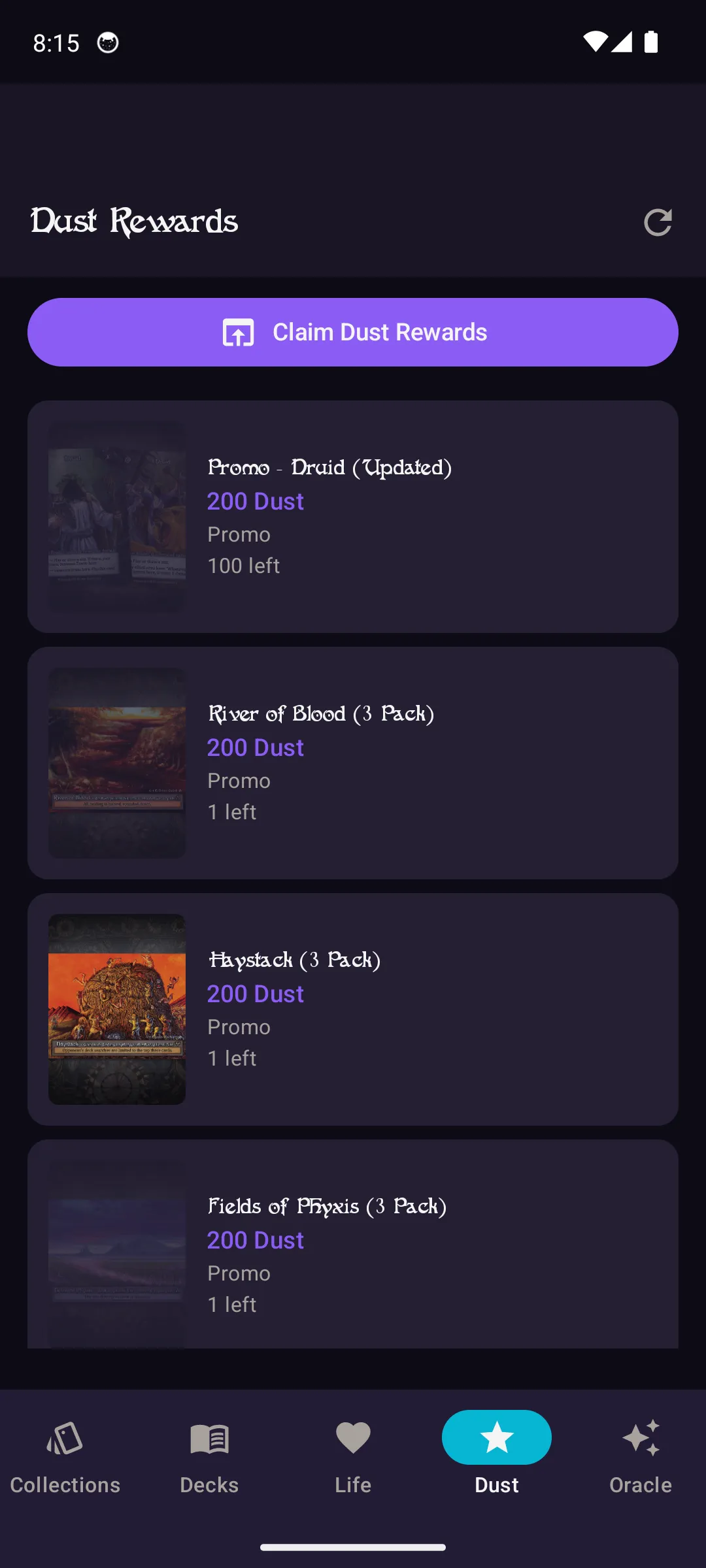
The Dust tab shows all currently available promotional pack rewards. Each reward displays the promo card art, dust cost, and quantity remaining. Data is fetched directly from the rewards program and can be refreshed anytime.
Reward Details
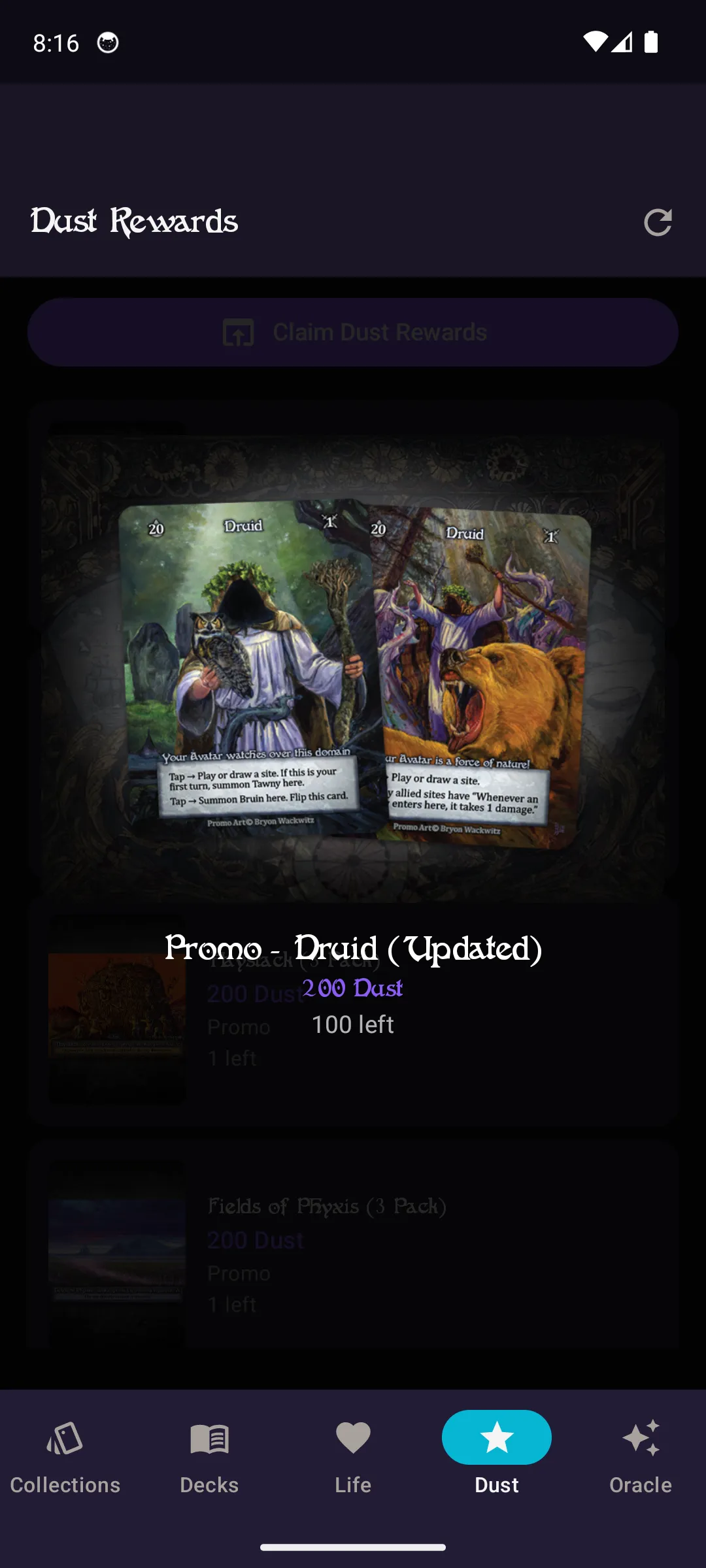
Tap any reward to see its full details including the promo card image, dust cost, pack type, and current availability. Use this to plan your dust spending and track which promos are running low.
Deck Manager
Build, analyze, and manage your Sorcery decks with detailed stats, mana curve analysis, and tournament-ready picklists.
Your Decks
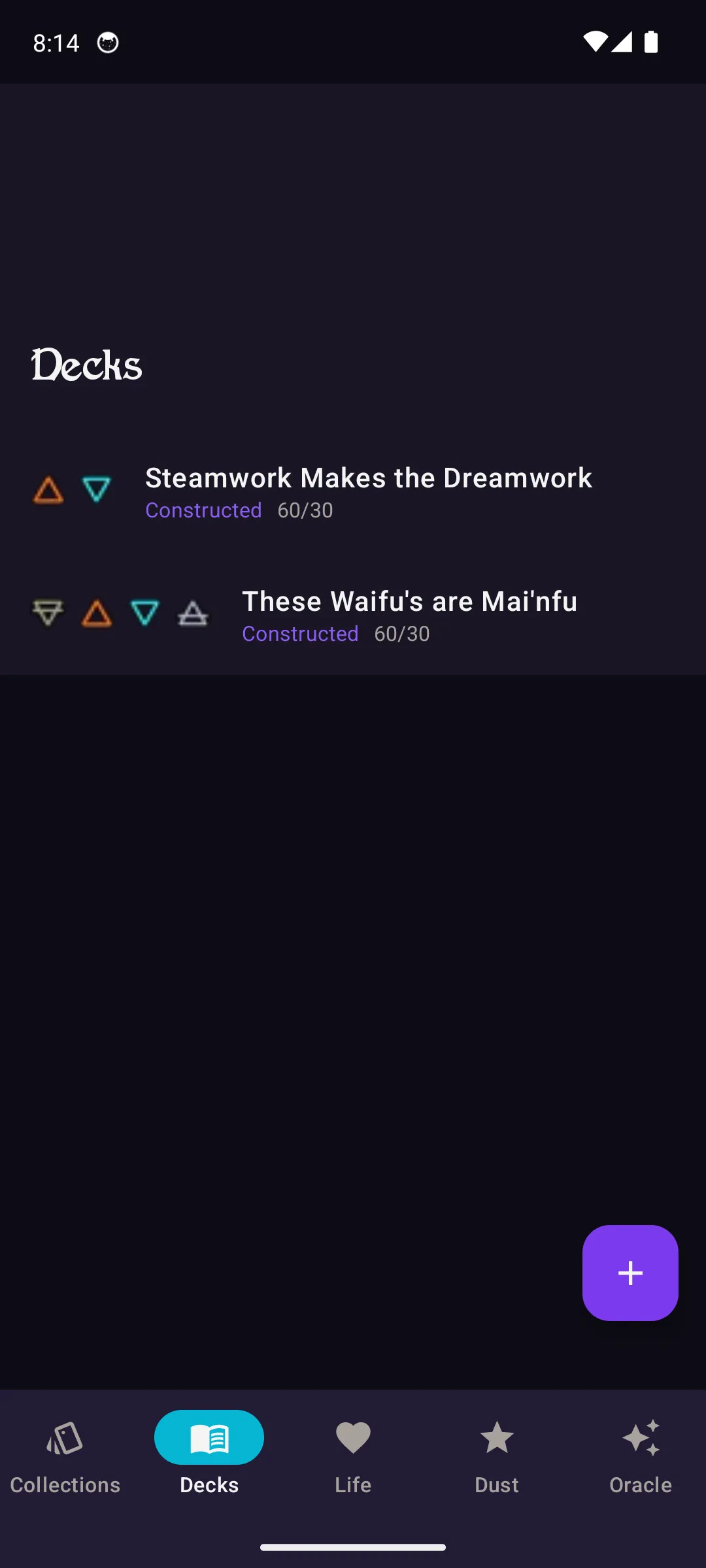
The Decks tab shows all your built decks with element icons, card counts, and format type. Tap any deck to view its full breakdown.
Create a Deck
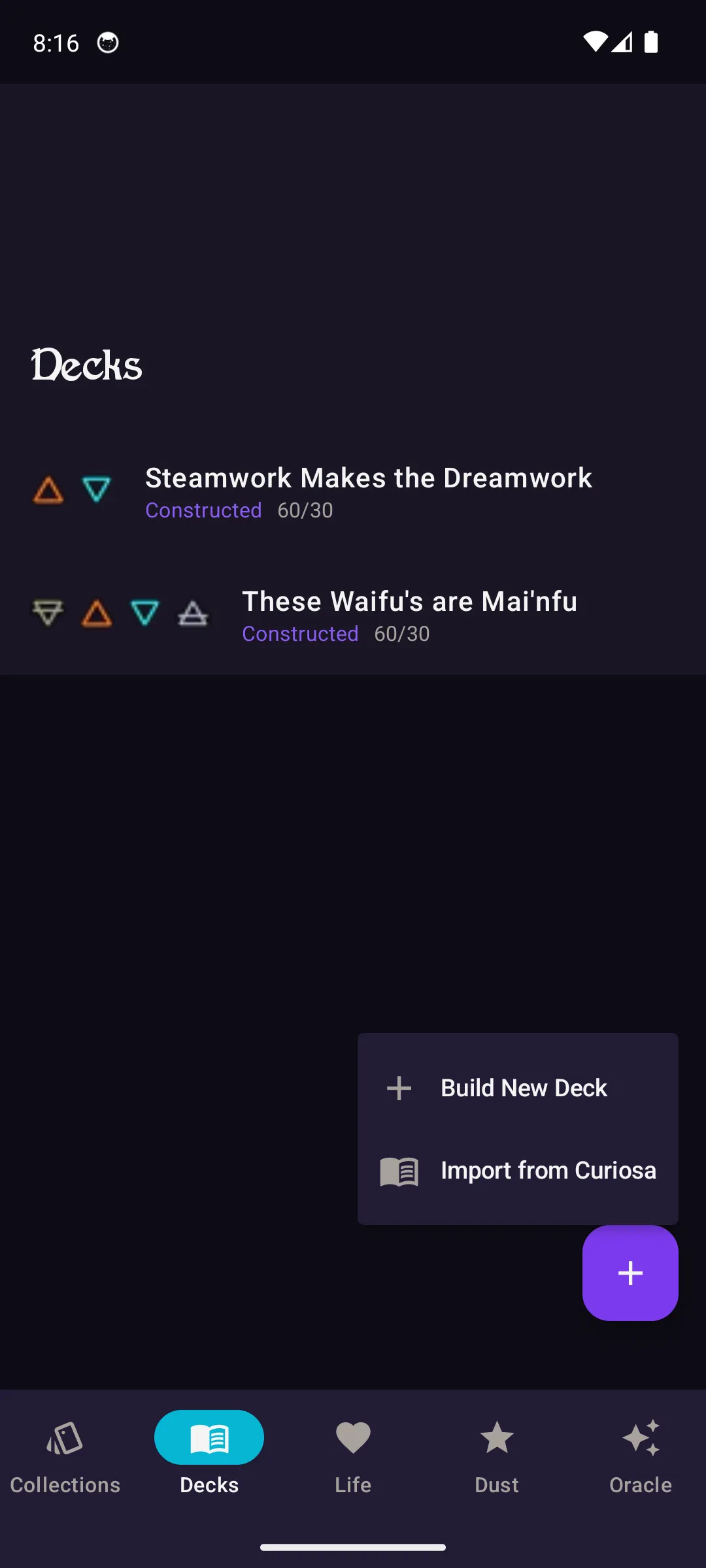
Tap the + button to build a new deck from scratch or import from Curiosa using a share code. Importing automatically adds all cards from the Curiosa decklist.
Deck Builder
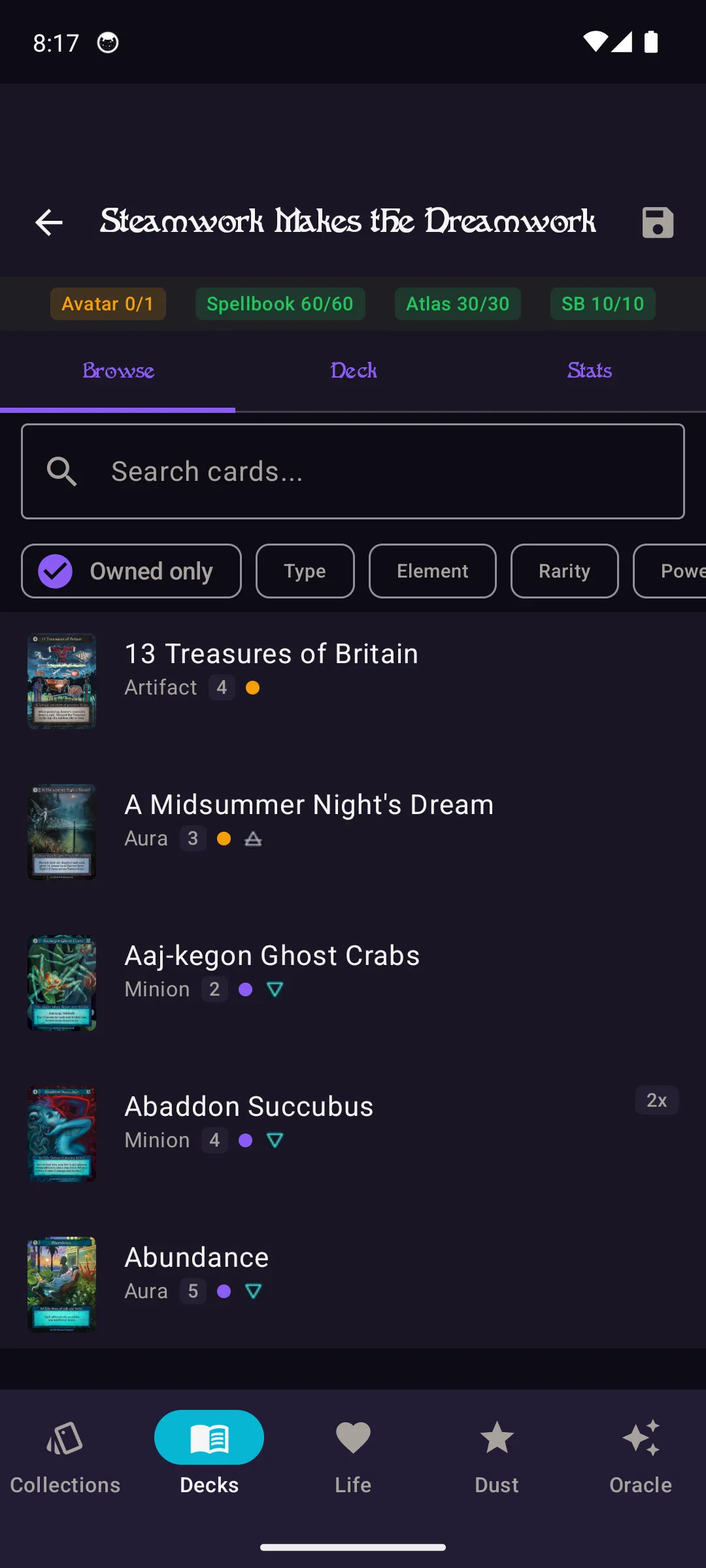
The deck builder lets you browse and add cards with real-time count validation (Avatar, Spellbook, Atlas, Sideboard). Filter by type, element, rarity, or owned cards only.
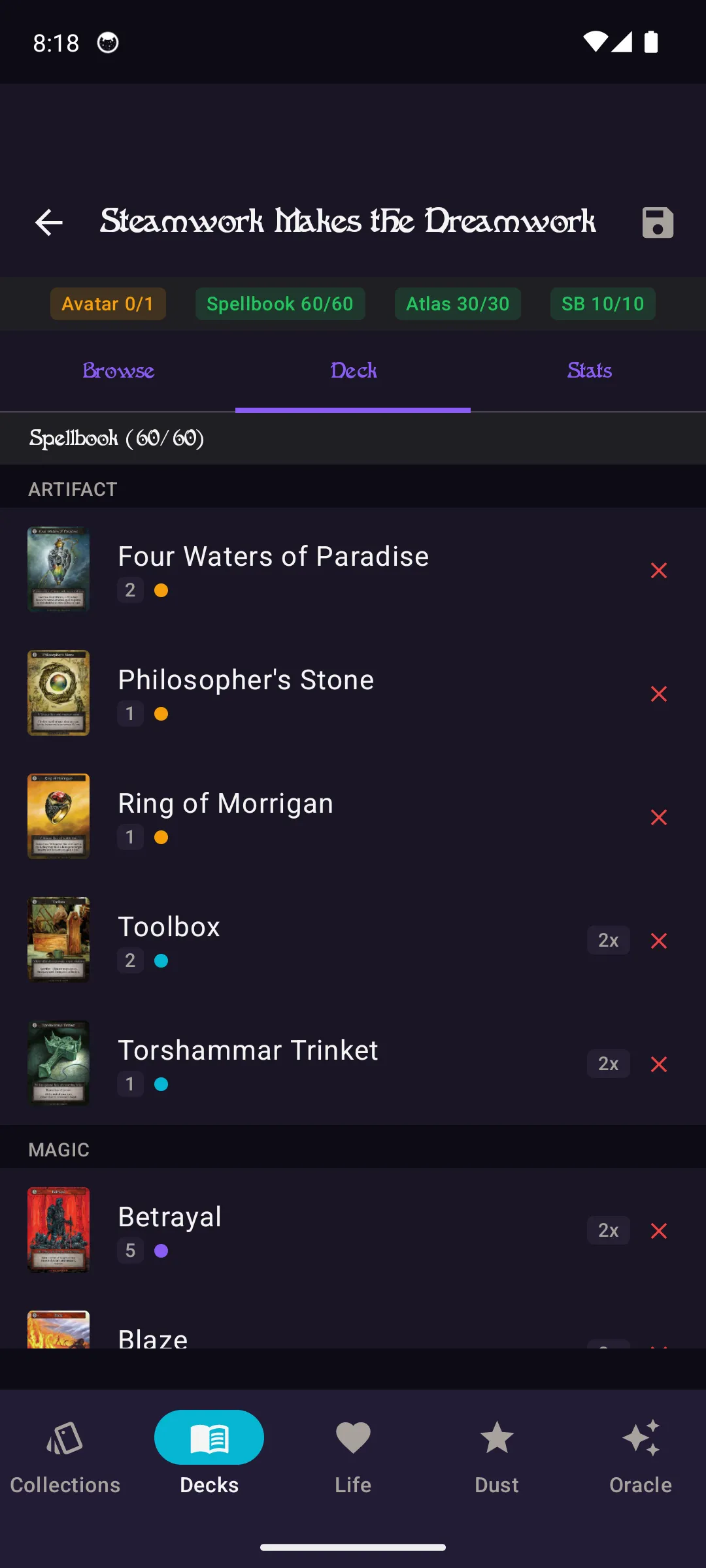
Cards in Deck
Switch to the Deck tab in the builder to see all cards currently in your deck. Adjust quantities, swap cards, and verify your build meets format requirements.
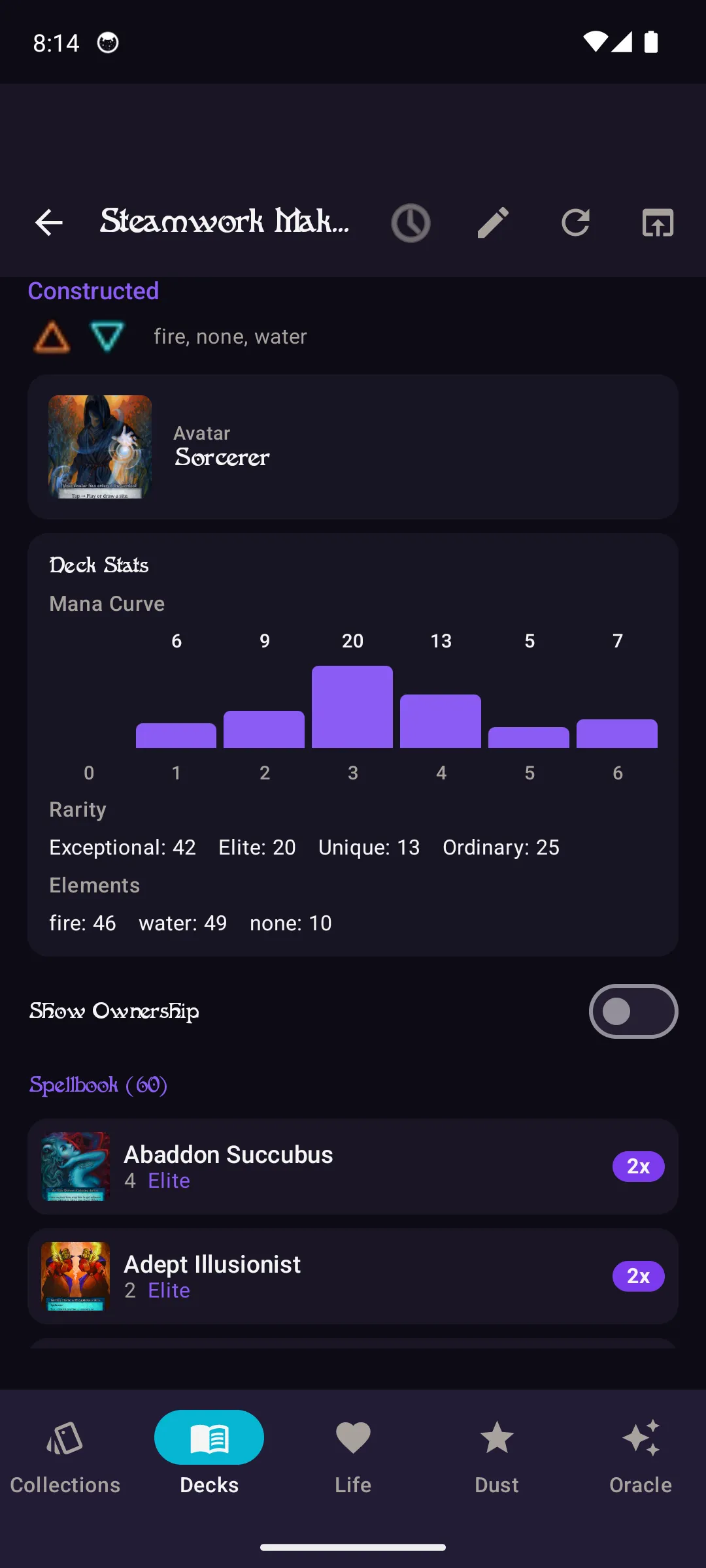
Deck Overview
The deck detail view shows your avatar, mana curve, rarity breakdown, and element spread. Get a complete statistical picture of your deck's composition at a glance.
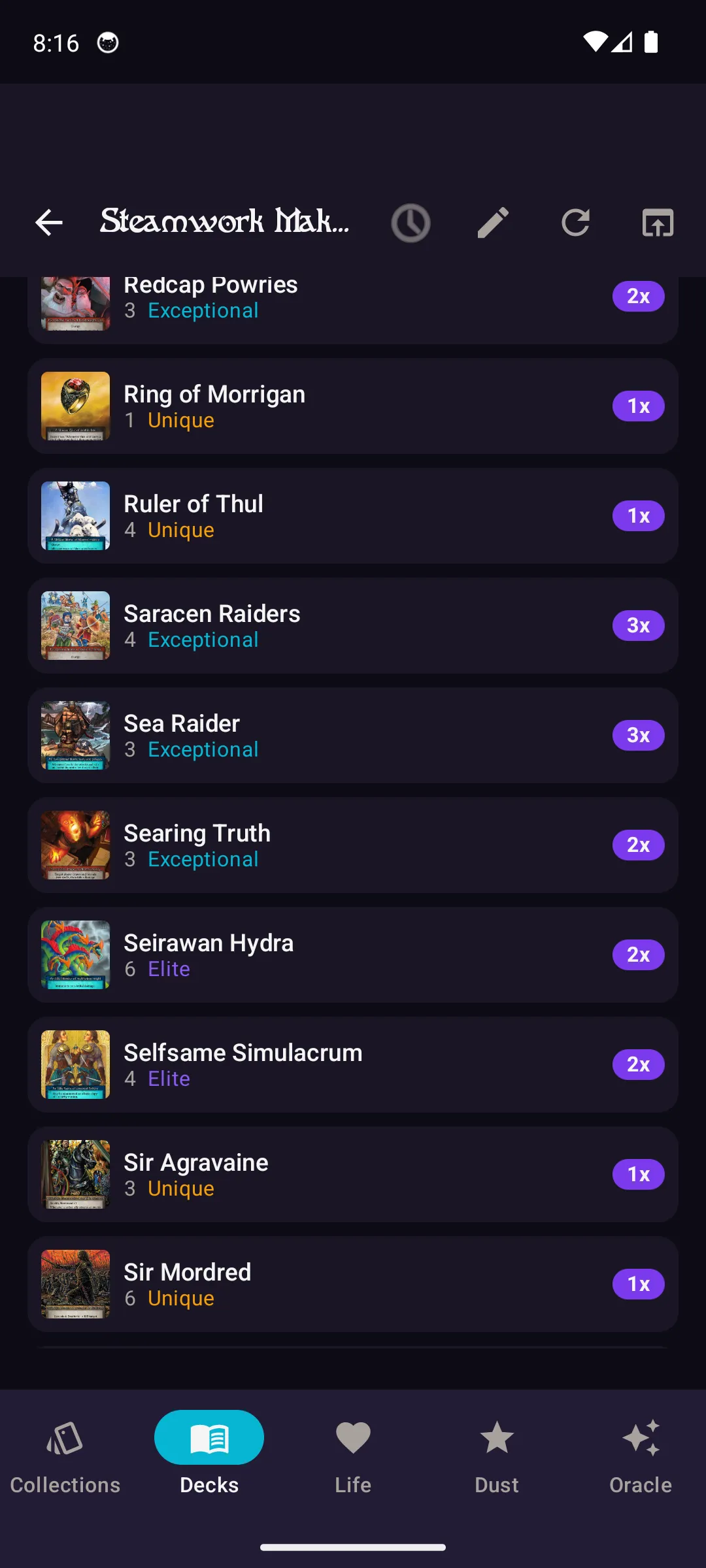
Spellbook List
Scroll down in deck detail to see your full spellbook, atlas, and sideboard listed with card art thumbnails, mana costs, rarity, and quantity. Tap any card for its full detail view.
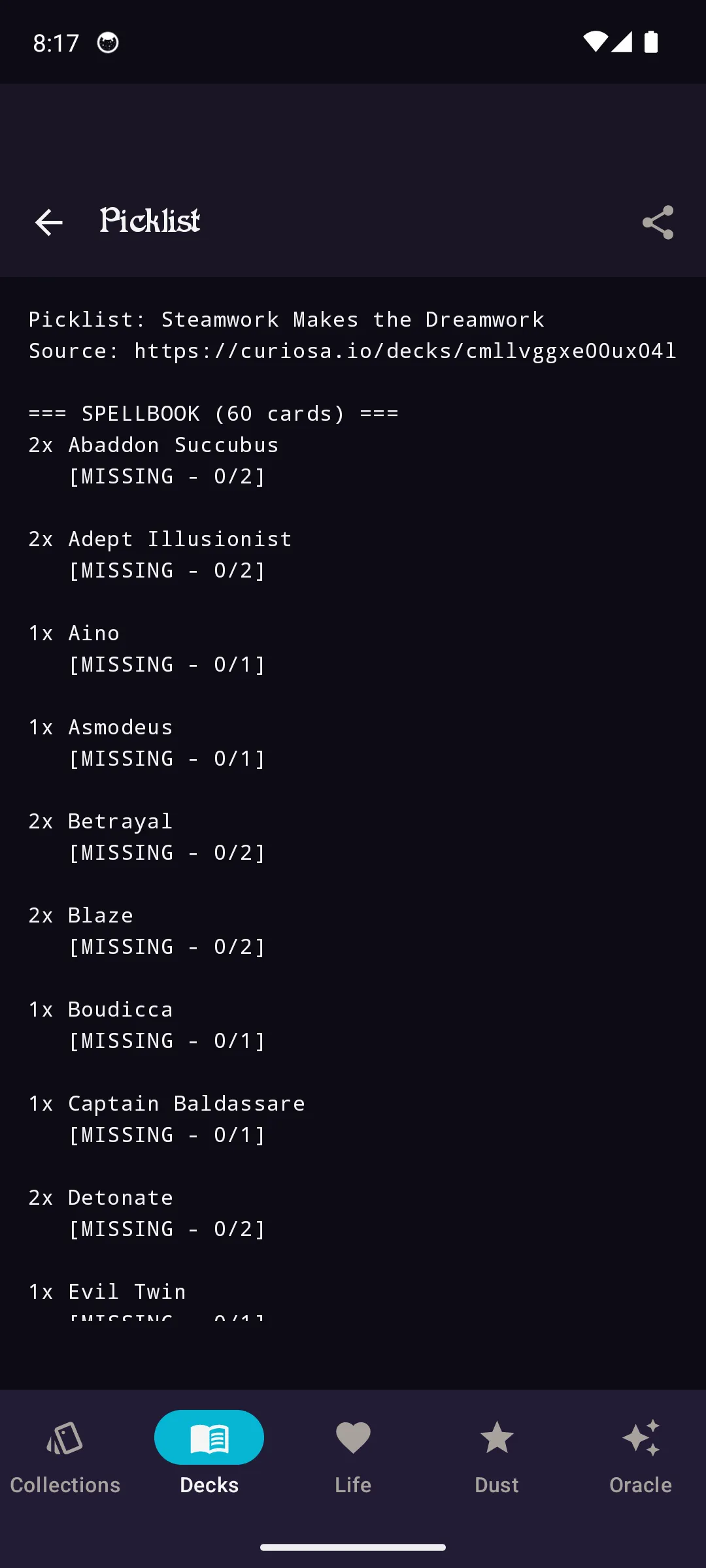
Tournament Picklist
Tap Generate Picklist at the bottom of your deck to create a tournament-ready picklist. This formatted list can be shared or printed for event registration.
Deck Stats & Records
Tap the Stats icon in the toolbar to view detailed deck statistics, win/loss records, and matchup history. Track your performance over time and identify your strongest matchups.